3D printing beginner
You have a GLB asset from a web library and need a 3MF file for the next stage of your print workflow.
You know what to inspect before converting and how to confirm that the output is usable.
glb to 3mf onlineFORMAT WORKFLOW
This glb to 3mf tutorial free walks through a practical browser-based workflow, from checking your source asset to reviewing the converted 3MF file before using it in a 3D printing or design process.
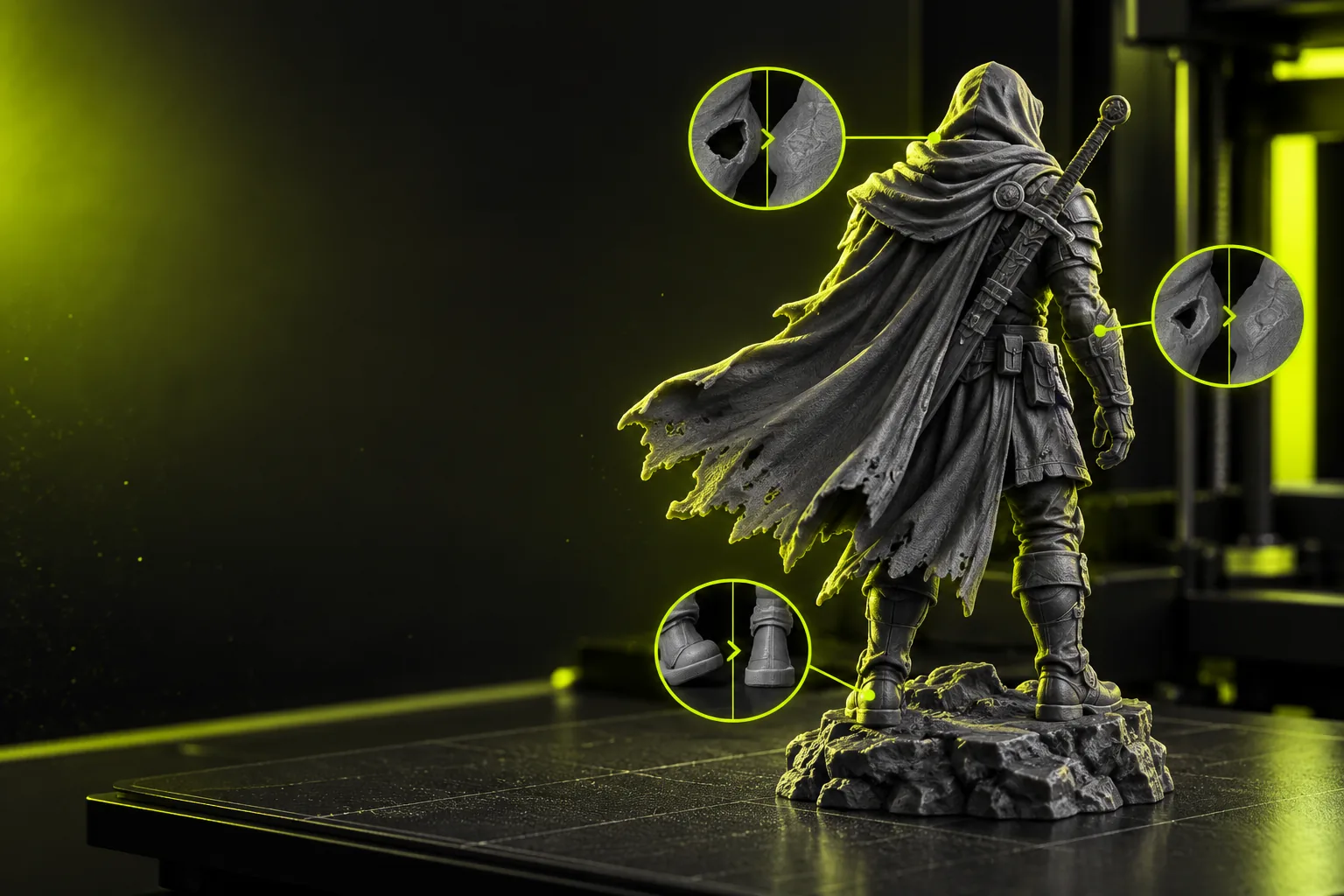
A clean source file and a clear output goal make the conversion easier to assess. Check these points before beginning the tutorial.
You have a GLB asset from a web library and need a 3MF file for the next stage of your print workflow.
You know what to inspect before converting and how to confirm that the output is usable.
glb to 3mf onlineYou are moving a textured or presentation-ready model into a format that can carry more structured manufacturing information.
You separate visual appearance checks from geometry checks instead of assuming the conversion preserves everything.
glb to 3mf with colorYour source arrives as GLTF or GLB and must be tested in a downstream tool that expects 3MF.
You identify whether the source is a single asset, a scene, or a package with external dependencies.
gltf to 3mfYou need a practical format change while keeping the original GLB untouched for later reference.
You preserve the source, record the conversion context, and review the 3MF as a separate deliverable.
obj to 3mf converterUse this three-stage sequence for a controlled conversion. The important habit is to validate the result instead of treating a completed export as proof of quality.
Keep the original file unchanged, then check that it opens correctly and contains the geometry you expect. Note whether the asset includes textures, multiple objects, animations, or external references.
Send the source through the conversion workflow and select 3MF as the intended output. Use a descriptive task note when the model has color, several parts, or a specific downstream purpose.
Open the output in a compatible viewer or slicer. Check scale, orientation, part count, surface appearance, and whether the result is suitable for the next step before replacing your source.
The table below separates source conditions from the result you should expect. It is a quick diagnostic reference for a tutorial workflow rather than a guarantee that every application interprets 3MF identically.
GLB opens with missing textures
Source or action
The mesh may still be present, but appearance files or references are unavailable.
Likely result and fix
Confirm that required assets are embedded or available, then review the converted file for material loss.
Model is the wrong size
Source or action
Unit conventions can differ between the authoring tool, GLB scene, and destination software.
Likely result and fix
Measure the result in the target application and set the intended scale there if needed.
Several parts become one object
Source or action
The source scene may be flattened or interpreted as a single mesh during conversion.
Likely result and fix
Preserve the original and test a part-aware export path when separate editing or assembly is important.
Color looks different
Source or action
Textures, vertex colors, materials, and lighting are not interchangeable representations.
Likely result and fix
Compare the mesh and appearance separately; use a color-specific workflow when visual fidelity is required.
Output will not open
Source or action
The file may be incomplete, invalid, or unsupported by the application being used for review.
Likely result and fix
Repeat the conversion with a known-good source, then test the 3MF in another compatible viewer.
Thin or inverted surfaces appear
Source or action
Normals, non-manifold geometry, or very thin walls can cause downstream display or slicing problems.
Likely result and fix
Repair the source mesh before conversion and inspect the repaired result independently.
A tutorial can show the route, but careful handling of assets determines whether the result is useful. These limits help set realistic expectations.
If the GLB is incomplete, hidden, damaged, or dependent on unavailable external data, a format change cannot reconstruct the absent model.
Workaround
Open and inspect the original first, and keep a verified source copy before starting.
Material definitions, textures, vertex colors, and application-specific shading may not survive in the same form across tools.
Workaround
Use the color-focused workflow and validate the output in the software that will use it.
Flipped normals, holes, non-manifold edges, and unsuitable wall thickness can remain problems after the file extension changes.
Workaround
Repair geometry before conversion, then run a second inspection on the 3MF.
Animation, cameras, lights, rigs, and presentation settings are not the same as printable or editable mesh data.
Workaround
Decide whether you need the model's geometry, its appearance, or its full scene context and review the matching result.
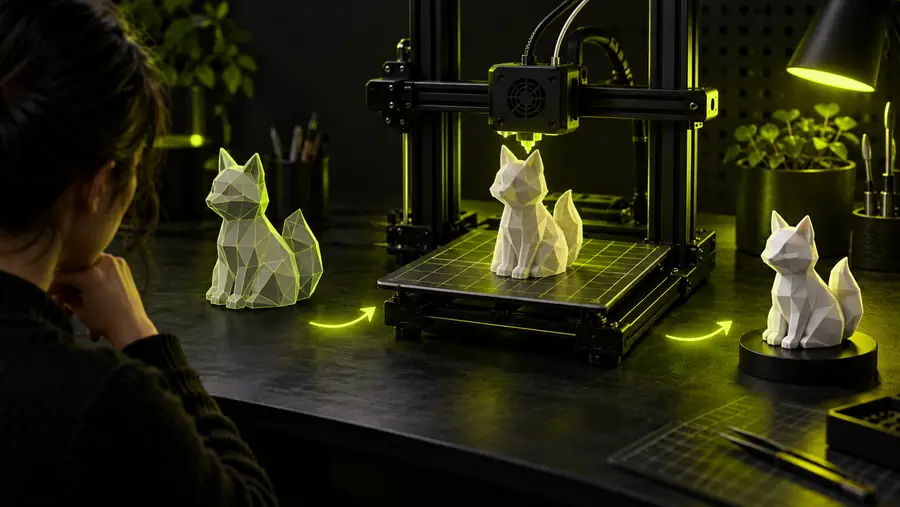 Before conversion
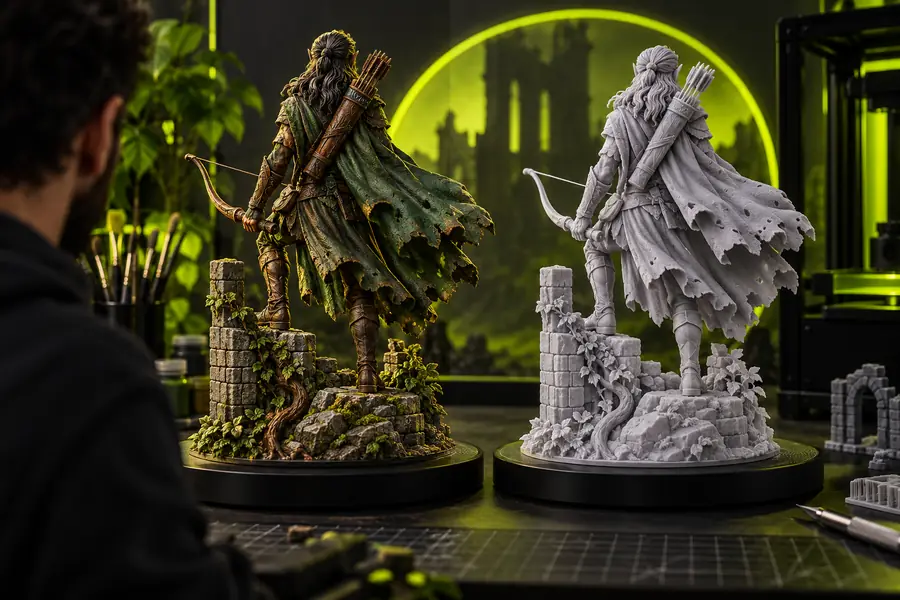 After review
Apply the tutorial to a copy of your GLB, describe the intended result, and inspect the returned 3MF before using it in a downstream tool. Keeping the source and output separate makes troubleshooting much easier.
Convert my GLBThese answers cover the practical questions people ask when following a free tutorial workflow for GLB and 3MF conversion.
Start by checking that the GLB opens correctly and contains the expected geometry. Convert it through the web workflow, then inspect the 3MF for scale, orientation, parts, surfaces, and appearance in the application that will use it.
Yes, the workflow described here is web-based, so the conversion step does not depend on a local desktop converter. You should still use a compatible viewer or slicer afterward to verify that the resulting 3MF works for your purpose.
Color preservation depends on how the GLB stores its appearance data and how the destination application interprets the 3MF. Check textures, materials, and vertex colors separately, and use a color-focused workflow when appearance is important.
GLB scenes and destination tools may interpret units differently, so a successful conversion can still appear too large or too small. Measure the 3MF in the target application and correct the scale there if necessary.
First, confirm that the original GLB opens and that the conversion completed without an incomplete download or damaged source. Try a known-good copy and review the output in another compatible application before assuming the model itself is unusable.