Glbto3mf

Browser-based preparation

Try a free glb to 3mf online workflow

A free glb to 3mf online search often starts with a simple goal: move a model from a visual 3D file into a format your slicer can use. Start by checking the GLB itself, then confirm what the available 3MF export actually retains. Glbto3mf provides this workflow guidance; the linked studio is a separate service, so check its current access and export options before relying on it.

Check available export options
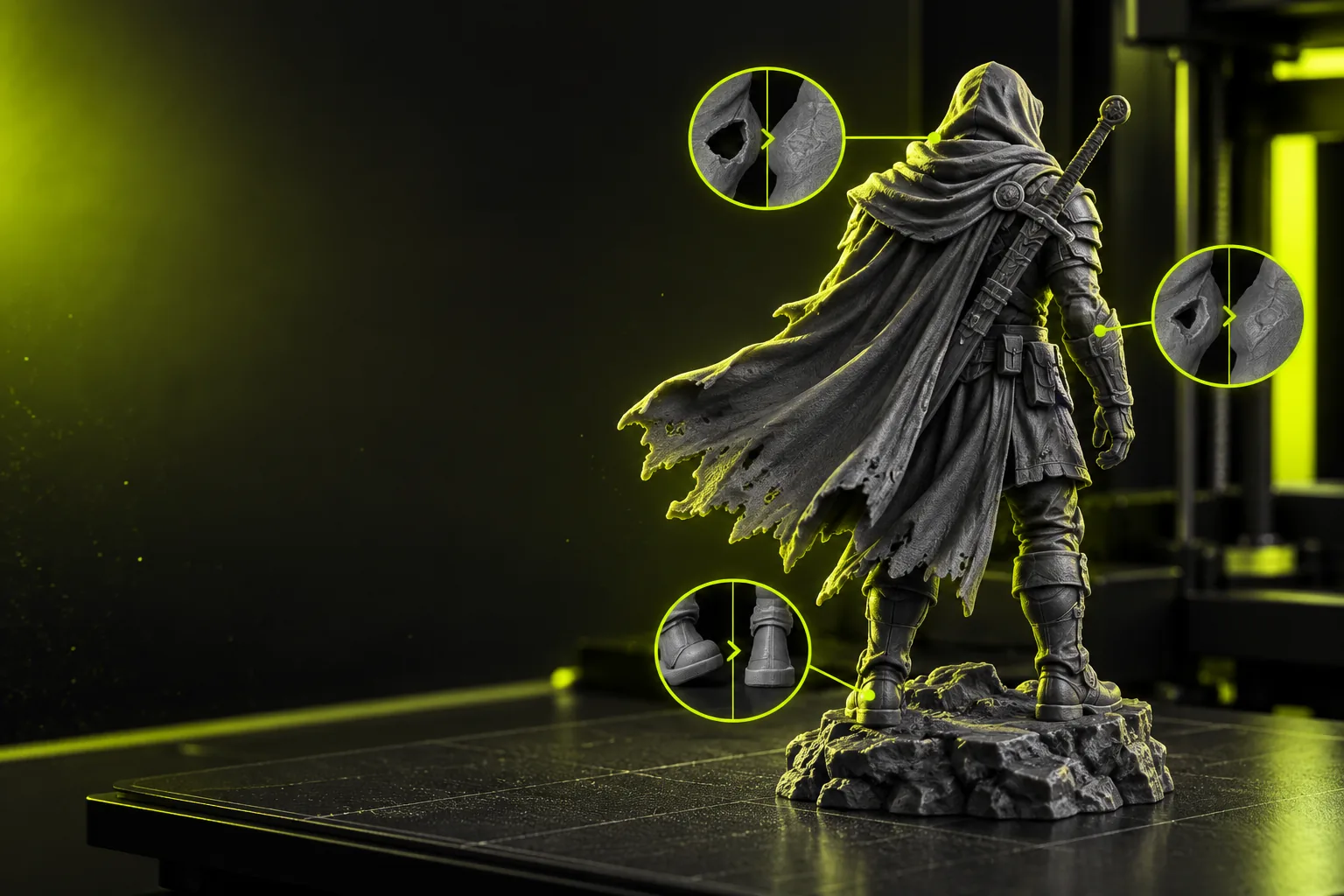
Three-dimensional model shown in a studio-style visual

Prerequisites

Have the source file, its intended size, and a slicer ready before you begin. These related guides cover the decisions most likely to change your workflow.

One full run-through

Treat conversion as a round trip from source inspection to slicer verification, not just a change of filename.

  1. 1

    Inspect the GLB

    Open the source and look for missing surfaces, disconnected parts, unusually thin walls, or textures that do not appear as expected. Record a known dimension. A glb to 3mf workflow cannot repair every source defect simply by exporting it.

  2. 2

    Check the studio's options

    Use the studio link to review the file workflow available to you. Check whether it accepts your GLB, offers 3MF output, and shows any terms or charges before you commit work to it. Do not assume a browser-based tool includes a free export.

  3. 3

    Export, then open in a slicer

    If 3MF export is available, save the result and open it in the slicer you plan to use. Compare dimensions, part count, orientation, and any material assignments against the source. Preview the sliced layers; a visible model is not necessarily printable.

Options table

Choose a route based on what needs to survive the move, not on the file extension alone.

Direct GLB-to-3MF route
Inspect and repair before export

Best fit

Direct GLB-to-3MF route

A simple model that already opens correctly and needs little editing.

Inspect and repair before export

A model with questionable geometry, scale, or material setup.

Starting file

Direct GLB-to-3MF route

Keep the original GLB available for comparison.

Inspect and repair before export

Keep the GLB plus a working copy for edits.

Geometry

Direct GLB-to-3MF route

Export may carry existing mesh defects into the 3MF.

Inspect and repair before export

Inspect holes, non-manifold edges, and thin features before export.

Scale

Direct GLB-to-3MF route

Verify dimensions after opening the result.

Inspect and repair before export

Set or confirm intended units before exporting, then verify again.

Color

Direct GLB-to-3MF route

Do not assume GLB textures become printable color assignments.

Inspect and repair before export

Check material handling and the slicer's interpretation separately.

Access

Direct GLB-to-3MF route

Check the selected service's current export availability and terms.

Inspect and repair before export

Check the terms of any editor or repair tool you use.

Final test

Direct GLB-to-3MF route

Open the 3MF and inspect sliced layers.

Inspect and repair before export

Open the repaired 3MF and inspect sliced layers.

What fails

A 3MF file can save successfully and still fail your actual printing goal. Check these limits before treating conversion as finished.

A free search is not a free-export guarantee

The linked studio's available features and access terms may change. This page cannot verify that your particular file can be exported to 3MF at no cost.

Workaround

Review the studio's current terms and available file options before uploading a production model.

Textures may not become print colors

GLB can describe visual appearance in ways a 3MF workflow or slicer does not interpret as printable materials. A textured preview alone is not proof of a color print setup.

Workaround

Inspect material assignments in the resulting 3MF and in your target slicer.

Export does not guarantee printable geometry

Open surfaces, intersecting parts, and walls thinner than your printer can resolve may remain problematic after conversion.

Workaround

Repair the source mesh where needed and preview every sliced layer.

Units can change the apparent size

A GLB and a slicer may interpret model scale differently, even when both files open without an error.

Workaround

Compare a known measurement before export and after importing the 3MF.

Its own FAQ

A browser-based workflow may let you inspect or prepare a file, but free access does not establish that 3MF export is included. Check the chosen service's current terms and available output formats before starting. This page does not guarantee a no-cost export.

You can start by reviewing the model and the linked studio in a browser. You should still open any resulting 3MF in the slicer you intend to use, which may be a separate application. That final check helps catch scale and geometry problems.

Not necessarily. GLB textures, material definitions, 3MF material data, and slicer color assignments are not interchangeable guarantees. Compare the source appearance with the exported file in your slicer before planning a color print.

The source model's units may be missing, ambiguous, or interpreted differently during import and export. Measure a known feature in the GLB, then check that dimension after opening the 3MF. Correct the scale before slicing.

No. File creation only confirms that an output was produced, not that its mesh is closed, its walls are thick enough, or its parts are positioned correctly. Inspect the slicer's layer preview and resolve any warnings before printing.

Open 3D studio
Open 3D studio